Telling-time worksheet
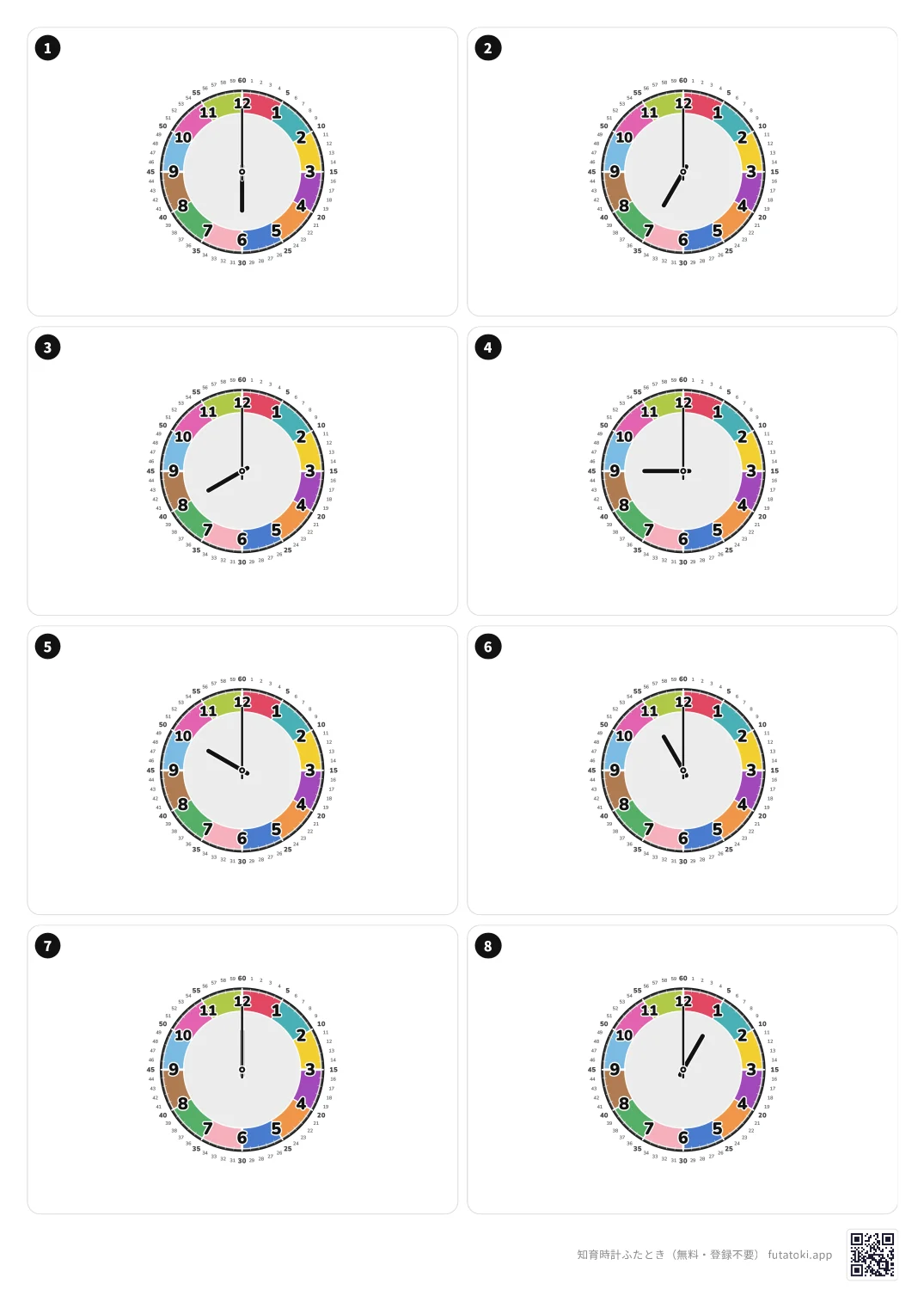
Color (crisp colors) PDF / A4 portrait, 5 pages / color / ~13.8 MB
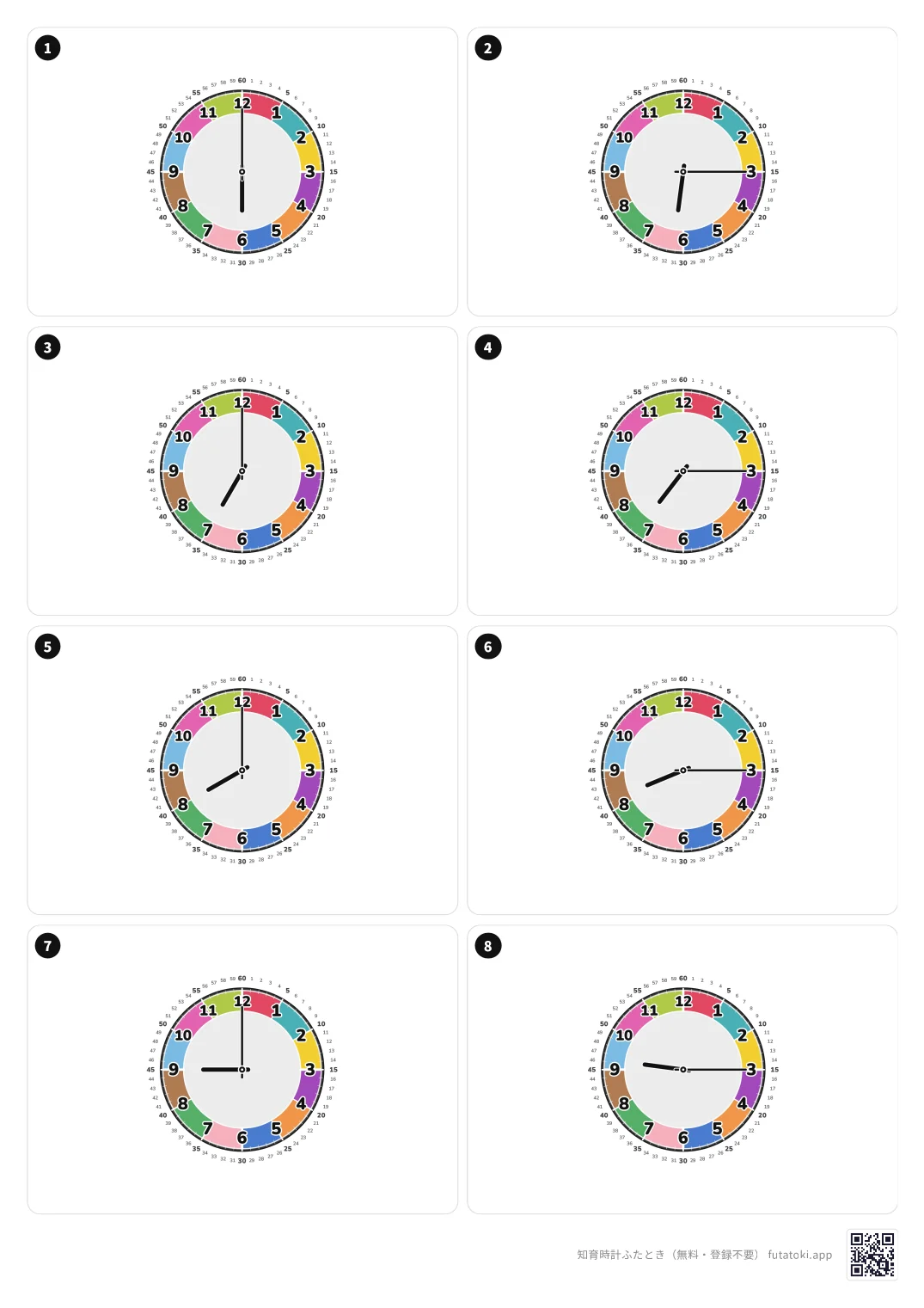
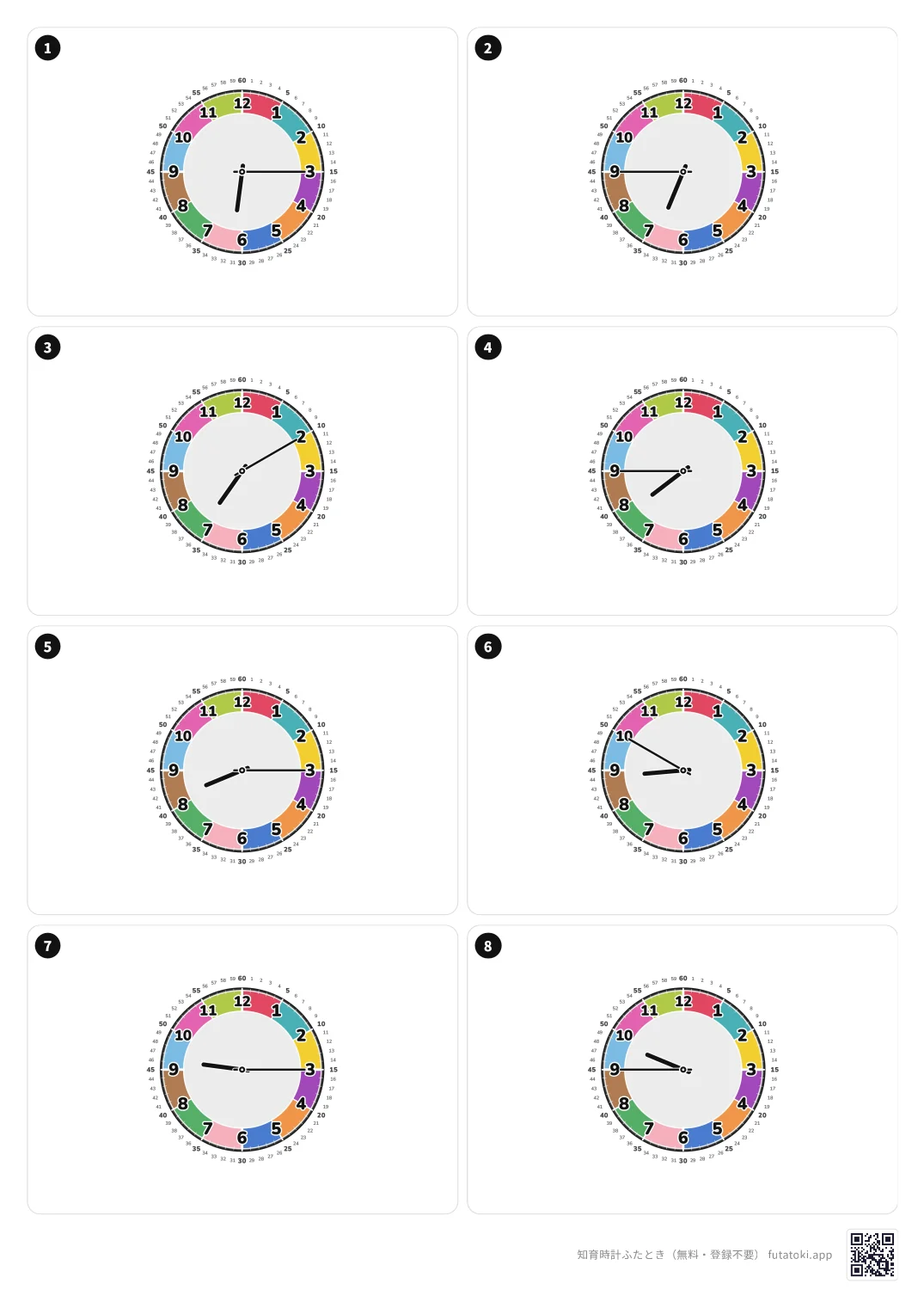
B&W (3 primaries) PDF / A4 portrait, 5 pages / B&W / ~10.5 MB
Ready-to-print practice sheets (PDF), free to grab.
Print the on-screen clock face onto one sheet — and a walkthrough of how to do it from the app itself.
Looking to swap the face onto a store-bought wall clock instead? Printable clock face ▸
Start here — single-file PDFs you can download and print as-is. Three difficulty levels, so you can match the child's current stage, plus a no-hands set for drawing the hands from a digital time.
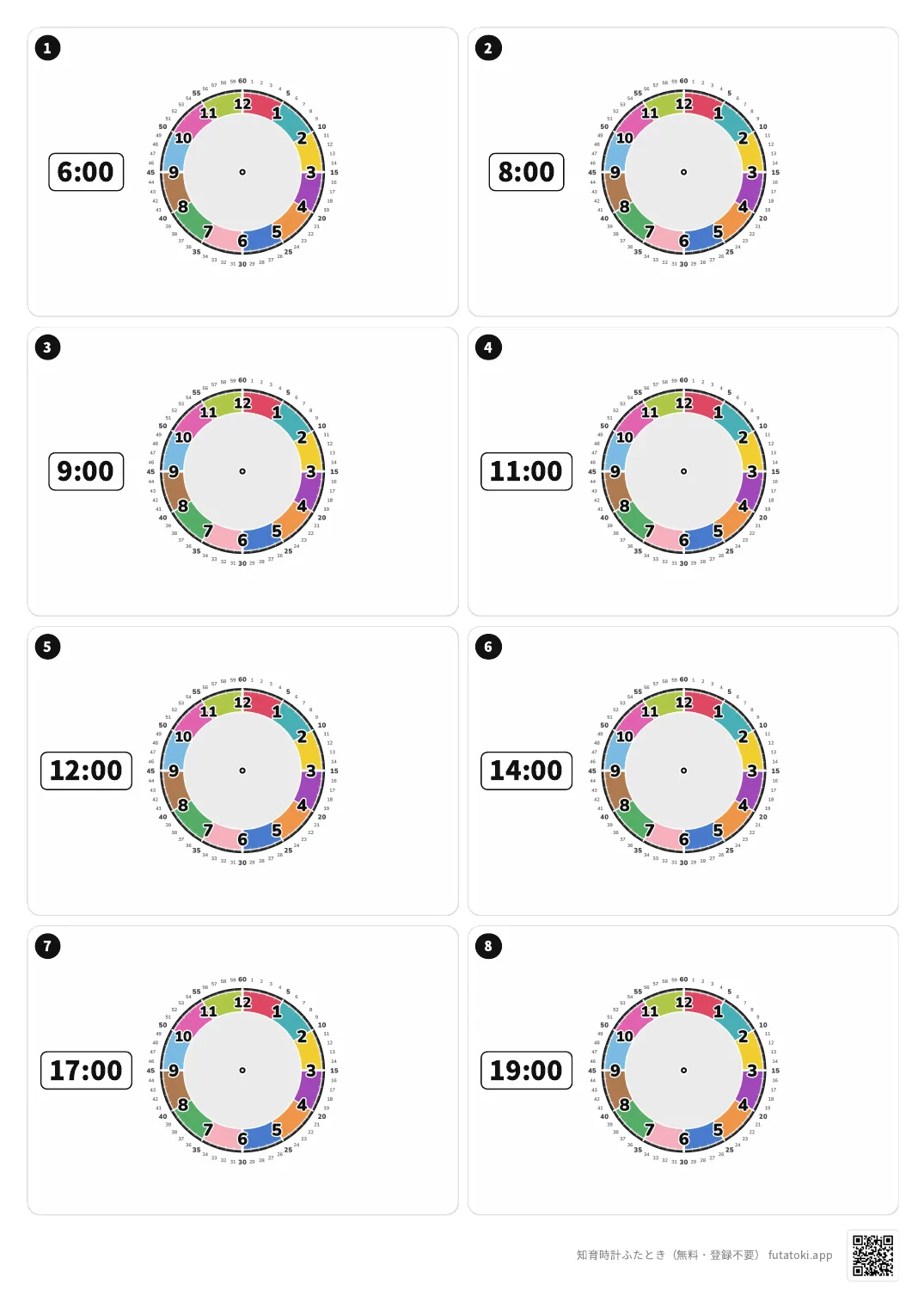
Want to make your own?
From here down is a walkthrough for using the Futatoki app's print feature to build worksheets in whatever layout, time, color, or quantity you need. If the sample PDFs above already cover what you need, feel free to skip this section.
One mode change is the difference between a regular clock face and a hands-blanked face for hand-drawing practice.
Pick "free" from the mode switcher at the top left to enter free spin mode, and the hands move when you drag anywhere on the screen. Stop at the time you want, then Ctrl+P (or Share → Print on a phone). The analog clock prints straight onto the page. "What time is it?" sheets, in 1-minute increments, as many as you'd like. Works for classroom telling-time units, home practice, take-home worksheets, and SPED clock materials.
Pick "auto" from the mode switcher at the top left to switch to auto spin mode, then print. The hands vanish from the printed page (keep the on-screen hands moving when you trigger Print). Now it's a hands-blanked face for the child to pencil in — "draw the minute hand here, the hour hand here." A telling-time worksheet that works the other direction. Useful in pull-out intervention, OT sessions, and any setting where the practice should match the child's current level.
Head to play.futatoki.app. No install, no sign-up.

スマホで読み取り
Pick segmentation (slices or circles), detail level (detailed or simple), 12h or 24h notation, and a palette — whatever you want on the printed face.
From the mode switcher at the top left, pick "free" for reading practice (set the time), or "auto" for hand-drawing practice.
On a computer, Ctrl+P (or ⌘+P on Mac). On a phone, browser menu → Share → Print. Check the preview and send to the printer.
6:00–21:00 in 15-minute increments, 61 faces × 2 sets (for telling-time worksheets)
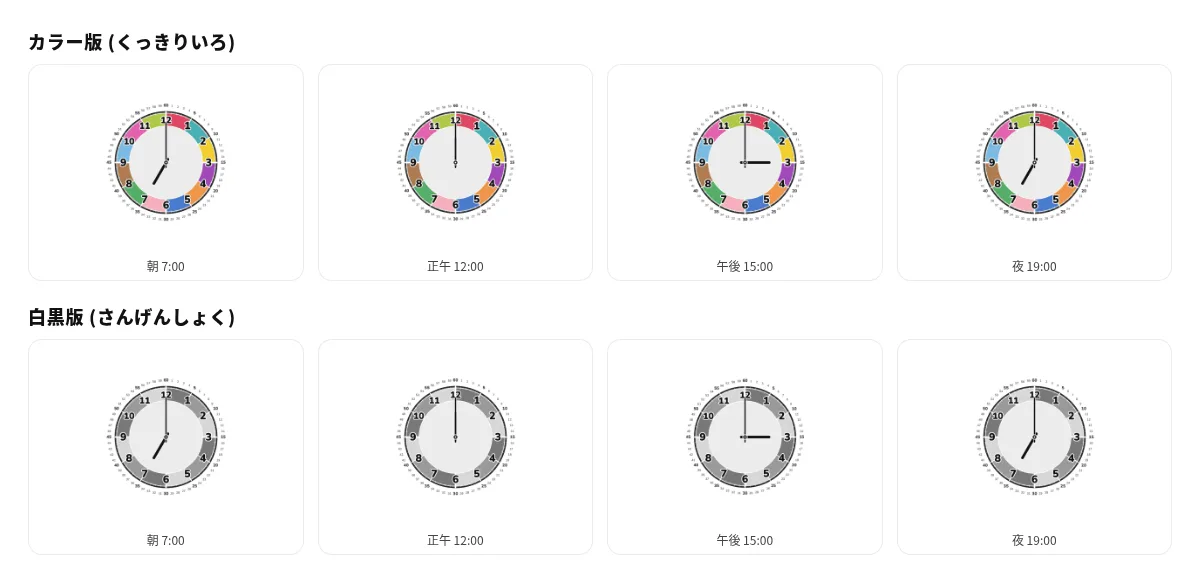
For when printing pages one at a time is tedious — two ready-to-go ZIPs covering common practice hours, 15 minutes apart. Pull out the pages you need for lesson prep, homework, home practice, or therapy worksheets. Both sets are shot in free spin mode for telling-time reading.
Here's what the faces inside the ZIP look like. The preview below shows "7:00 AM / noon / 3:00 PM / 7:00 PM" in both color and black-and-white. The ZIP itself contains all 61 faces from 6:00 to 21:00.
If you'd rather lay out 4, 6, 8, or 10 clock faces on a single sheet, here are two Windows approaches. You can't always pin down exactly the count you want, so pick whichever method gets closer to your goal.
The exact dialog wording and layout names vary a bit by printer and Windows version. The clock-face aspect ratio (roughly 1180 × 820, tablet landscape) won't match the paper aspect exactly, so expect a little cropping on top/bottom or left/right, or some white margin — that's normal.
Beyond the two ready-made sets above, you can pick any palette and mode combination, hit Ctrl+P, and get exactly the printable you want. The app's clock is a clock you can move; the print feature catches whichever view you're looking at. For example, picking the "monotone" palette gives you a face like this.
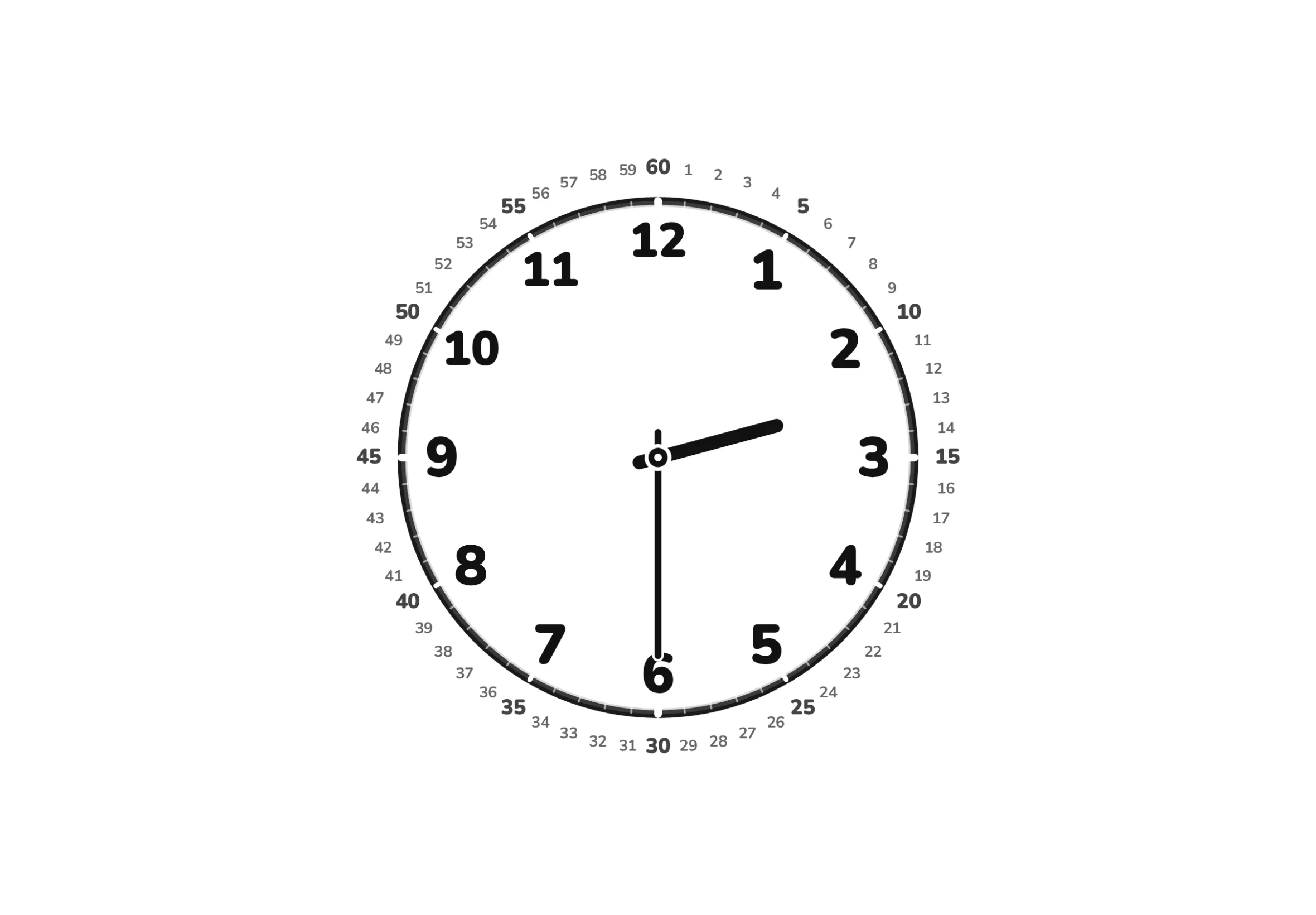
Looks like a regular wall clock
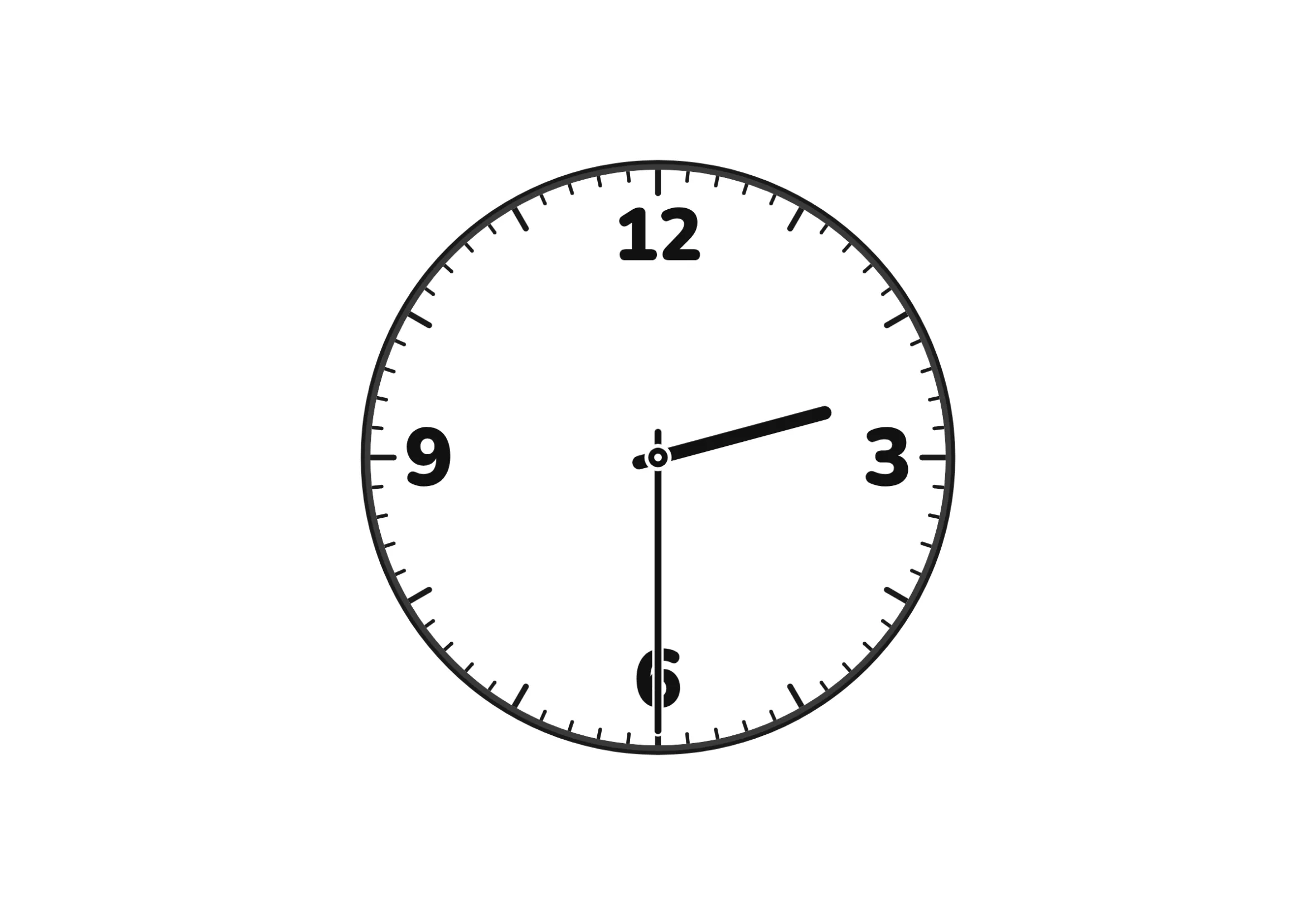
Like a station clock — minimal numbers
Bonus
For an even more minimal page, you can drop the numbers off the "monotone × circles × simple" face above. The combination is "monotone × circles × simple (no number system)." Only hands and tick marks remain. Useful for testing whether a child can read by tick marks alone, or as a base for worksheets where they write the numbers in themselves.
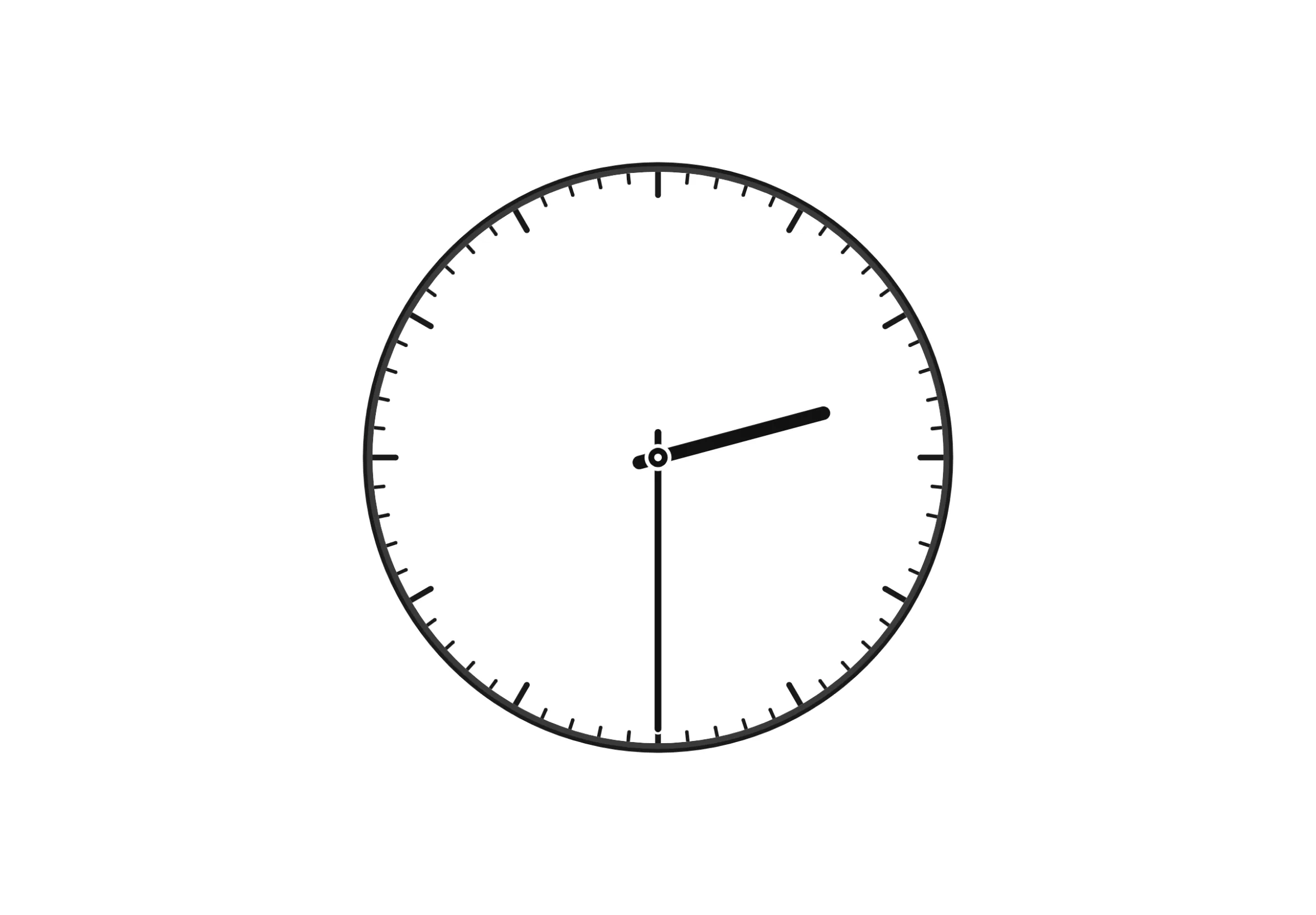
All numbers stripped — only hands and tick marks left
Set digits to "none"
Tap the appearance settings button at the top right of the screen to open the menu, and pick "none" for the digits. That's all it takes — the numbers are stripped from the clock face.
To bring the numbers back, just open the same menu and pick a different option for the digits. If you're using this for hand-drawing practice, follow the "hand-drawing practice sheets (auto spin mode)" steps above and set the digits to "none" in this menu before triggering Print.
The worksheets here — and anything you make yourself using the print feature — are yours to use, freely. No advance permission, no credit needed. The URL is optional too. Edit, crop, redistribute — all fine.
The full conditions (commercial use is fine, modified redistributions are fine, with one exception around incorporating the Futatoki Trade Dress into a physical product) are spelled out on the Terms of use page.
A quick note: this isn't an app that guarantees a child will learn to read an analog clock. It was built off a single case (N=1) — the author's own kid started reading the clock in four days, around age 5 — and that's not going to generalize to everyone. The design is built to be used in a way that fits the child in front of you, with no pressure either direction.