🇺🇸
Open app

Not a solo-play kind of app.

An 8-step guide for parent and child, on the path to telling time together.

There's no cheery mascot praising every tap. No levels to clear. No stickers to collect. The screen is kept quiet on purpose.

Think of it as a little journey to find where your child is "right now" — no hurry.

On "what age
is this for?"

Honest answer: so far, Futatoki the Learning Clock App has only been tried with the author's own child (N=1). So a clean, generalized "starts at age X" — that, we can't quite give yet.

For what it's worth, here's that one case. The child started at age 5. They could already read a digital clock, but at preschool the other kids could read and write analog times, while they couldn't, and they'd been quietly down about it for a while. Within four days of starting Futatoki, they could read the clock on the app — not on a real one yet, but on this one. They seem to have already forgotten they were ever upset.

That said, well before age 5 — even at toddler age — a child can start to get to know a clock with the minimal "circles × simple" setup. The guide below carries a soft "maybe around this time" hint on each step. Watch your child's "right now" and try whatever fits.

INDEX — 8 steps

  1. 01 Start with "there it is" and "it's round."
  2. 02 Just the short hand, for now.
  3. 03 Long hand, long reach. That's the minutes.
  4. 04 A whole day, in 24 seconds.
  5. 05 Same 7, different insides.
  6. 06 stack — an ordinary clock. split — what's inside.
  7. 07 No minute numbers — still readable.
  8. 08 "random." Ask, answer.
【Another way to play】 Drop activities onto the clock.
01 Getting used to it

Many families seem to start exploring this part around age 3.

Start with "there it is" and "it's round."

Settings circles × simple × crisp colors

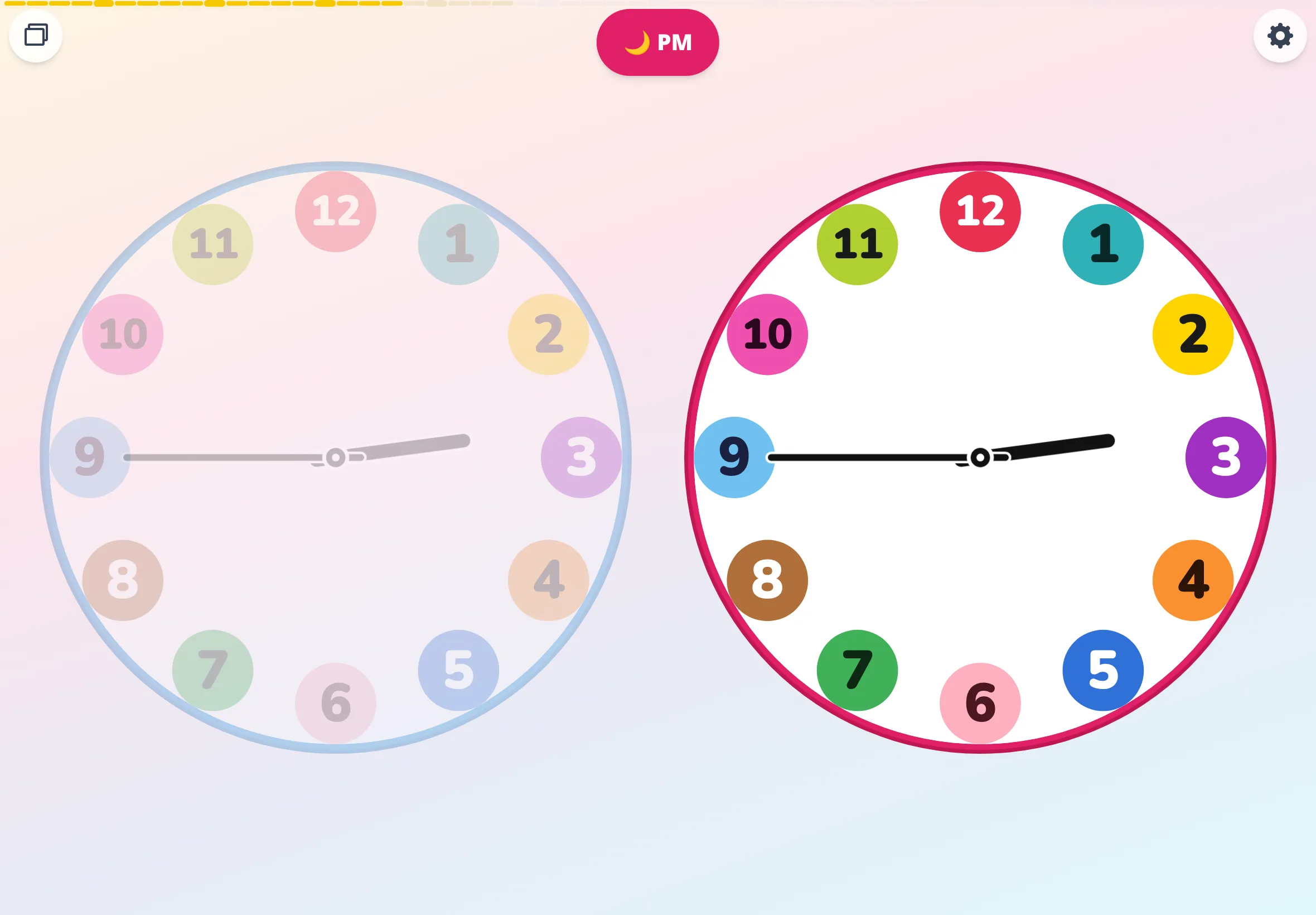
Futatoki the Learning Clock App in its minimal setup — minute numbers removed, only the 1–12 color badges visible, a browser-based kids' clock app, free.
Hide the minute numbers and only the badges remain. Information dialed all the way down.

Hide the minute numbers around the rim, and only the numerals inside the face are left — the smallest shape this app can take. Don't cram information in at the start. If there's one most-important thing about how to use this app, it's exactly that.

At this stage, no need to teach "what time is it?" at all. Something round, something colorful, something that moves slowly — just quietly living in the house. That alone is plenty. The same way a child takes a year to first point up at the kitchen clock — give them that same kind of time to notice this one.

Parent and child

"Look — we're on the blue part."

"Blue!"

"Yep, blue."

Tip: Parent talks first. No quizzing. Right answers aren't the goal yet.

02 Roughly is enough

Around 3 or 4, kids may get hooked on this kind of play.

Just the short hand, for now.

Settings circles × simple (focus on the short hand's color)

Tablet view of Futatoki the Learning Clock App in minimal setup — 1–12 color badges with the short hand pointing to one color, a free kids' analog clock app.
Which color is the short hand pointing at right now? That's all we're looking at.

Grown-ups feel like they read both hands at once, but really we catch the rough hour from the short hand first, and fill in the minutes after. The short hand always comes first.

Same order, for kids. Talk only about the color the short hand is pointing to, and the nearby number. Don't aim for "on the dot." Aim for "roughly." Most clock-checking adults do, day to day, gets by perfectly fine at "roughly" too.

Parent and child

"Short hand — what color is it near?"

"Purple!"

"Purple's right next to the 3. So it's about 3 o'clock."

Tip: Letting kids say the color comes faster than having them trace the number with a finger. Once the colors flow, start adding "which color is which hour."

03 Reading it, for real

Around 4 or 5 is when many kids start getting curious about minutes.

Long hand, long reach. That's the minutes.

Settings slices × detailed

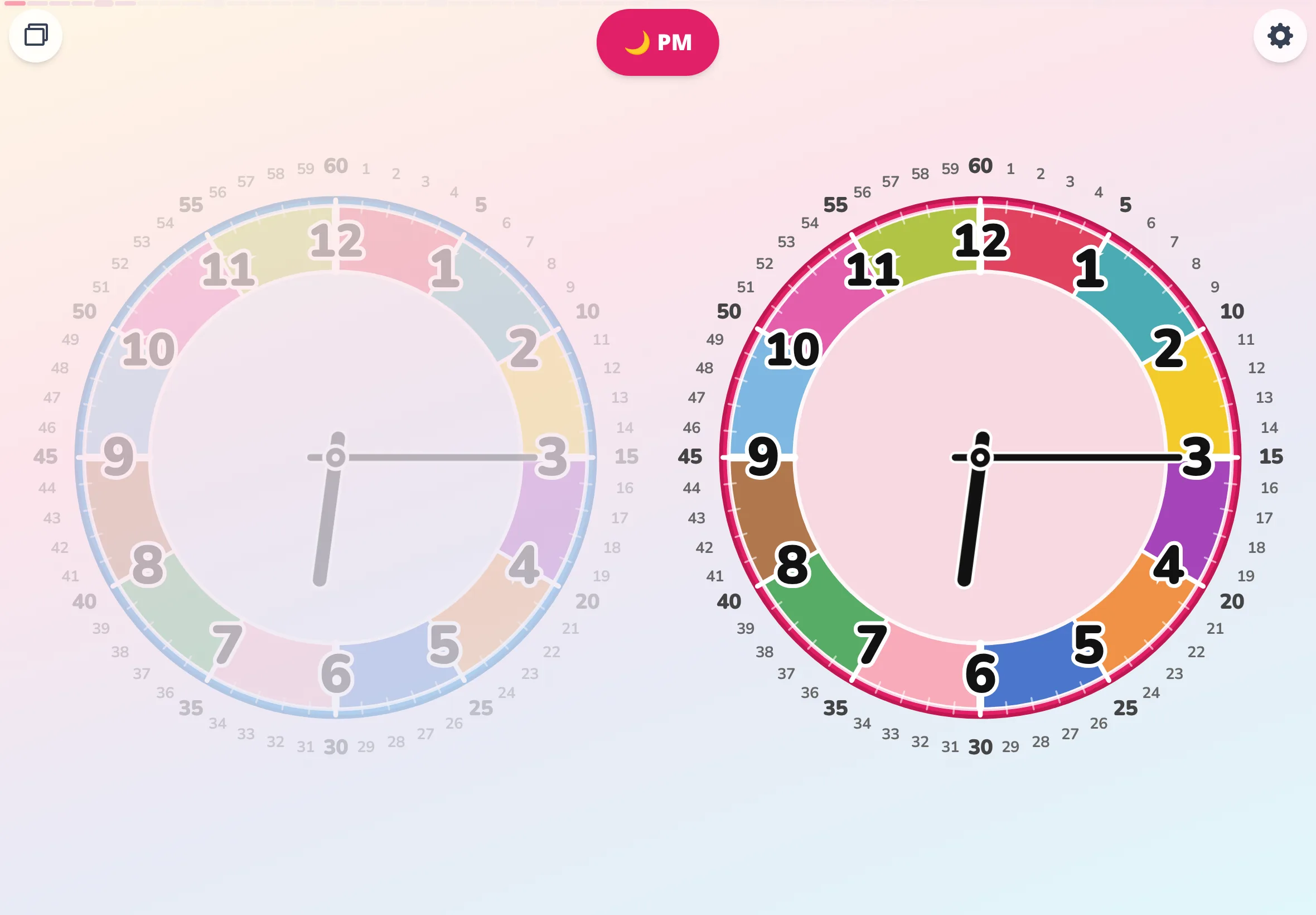
Futatoki the Learning Clock App in detailed mode — minute numbers 1–60 around the rim and the long hand reaching out to them, a kids' learning clock in the browser, free.
With 1–60 around the rim, you can literally see "how far the long hand is reaching."

Once the clock's existence and the colors have settled in through "simple," switch on "slices." The boundaries between hours show up as lines, and "one hour" becomes a visible chunk. To adults, almost nothing looks different. To a child, it's a big shift — "a tick" has suddenly become a real unit.

Once that's in, switch "detailed" on. The numbers 1 through 60 appear around the rim, and the minute counter shows its face. Here's the one sentence worth saying out loud:

「The short hand points to what's close by. The long hand is long — so it reaches farther.」

Long and short, each doing exactly what their names say. When this clicks, a child's eyes go wide and out comes a real "oh!" That's where learning to tell time really begins.

Parent and child

"Long hand — what number?"

"…15!"

"Right. And the short hand's a little past 6. So — it's 6:15."

Tip: Minutes are easier to learn in fives at first. Chant 5, 10, 15… while pointing, and most kids ride that up to around the 10s pretty quickly.

04 Feeling time flow

Any age is fine. Auto spin stays interesting no matter how often you watch it.

A whole day, in 24 seconds.

Settings auto spin ON (any mode)

In auto spin, a day runs in about 24 seconds — sun, moon, and sky shift from morning to noon to evening to night.

An ordinary clock does, barely, move if you stare hard enough — but to a child, it's basically frozen. Auto spin compresses a whole day into about 24 seconds. Sunrise → noon → sunset → night sky slide across the background alongside.

There's one moment here you really don't want to miss. The sun rises slowly from the lower left of the clock's rim. Say "look, the sun's coming up!" — and in that instant, the invisible thing called "the flow of time" finally has a shape you can see.

To start it: tap the mode-switch button at the top left of the screen, then tap "auto". That's all — auto spin starts. While it's running, tap anywhere on the screen to stop it, and you'll land in free spin mode.

Parent and child

"Which way did the sun come up?"

"This way!"

"Yep — up from under the sky. …And now which way is it moving?"

"That way!"

"That's the direction a clock goes. It's called clockwise."

A tiny story

"When the short hand goes past 6, the moon comes out." Keep a small line like that in your pocket, and the late-afternoon clock becomes the next page of a story.

Tip: This mode also shows that a clock never runs backward. Try to wind it back, and it won't go — same as time itself.

05 AM and PM

Around age 5, when "morning 7" and "evening 7" start to feel like different things in daily life.

Same 7, different insides.

Settings Long-press AM or PM to peek

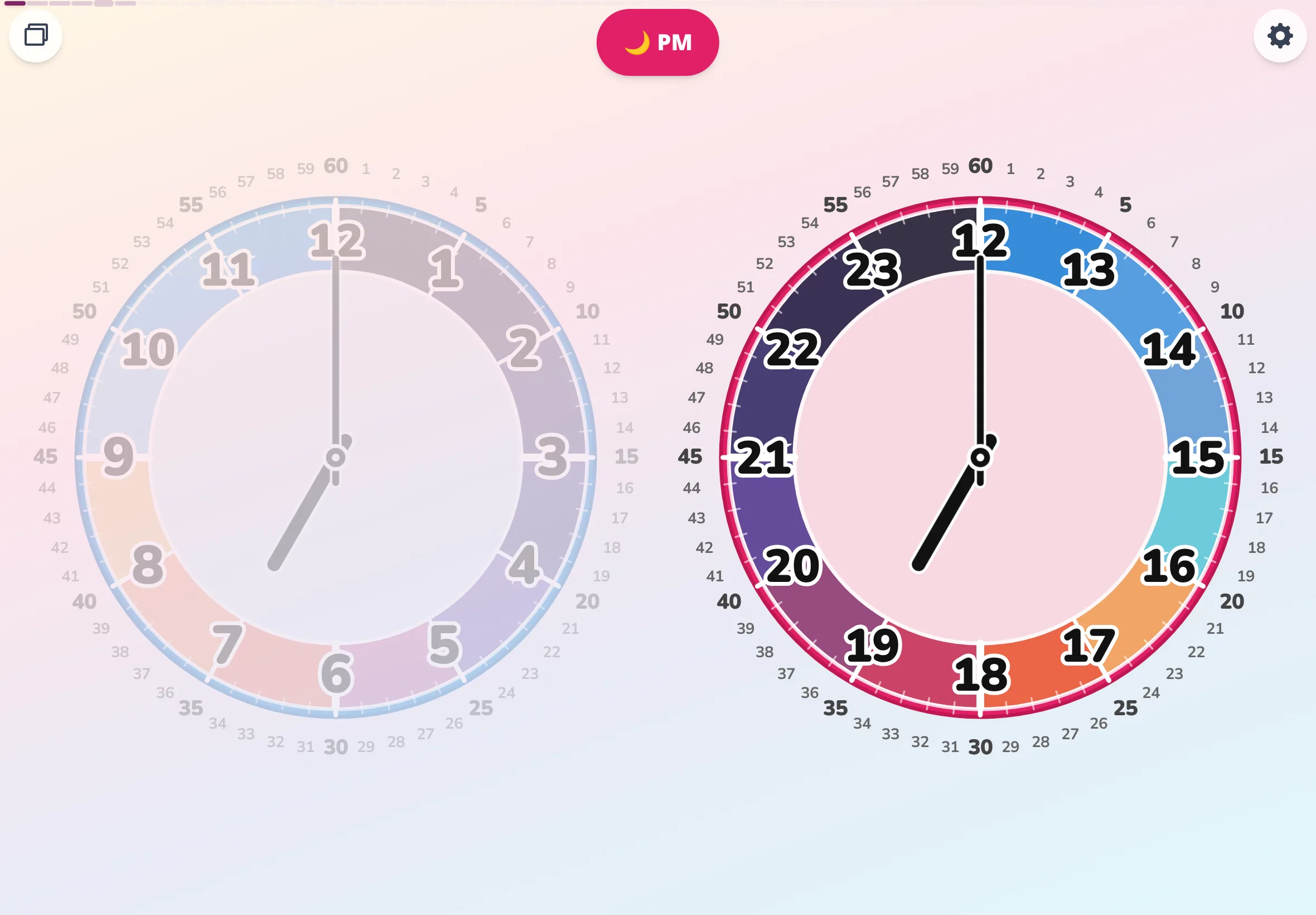
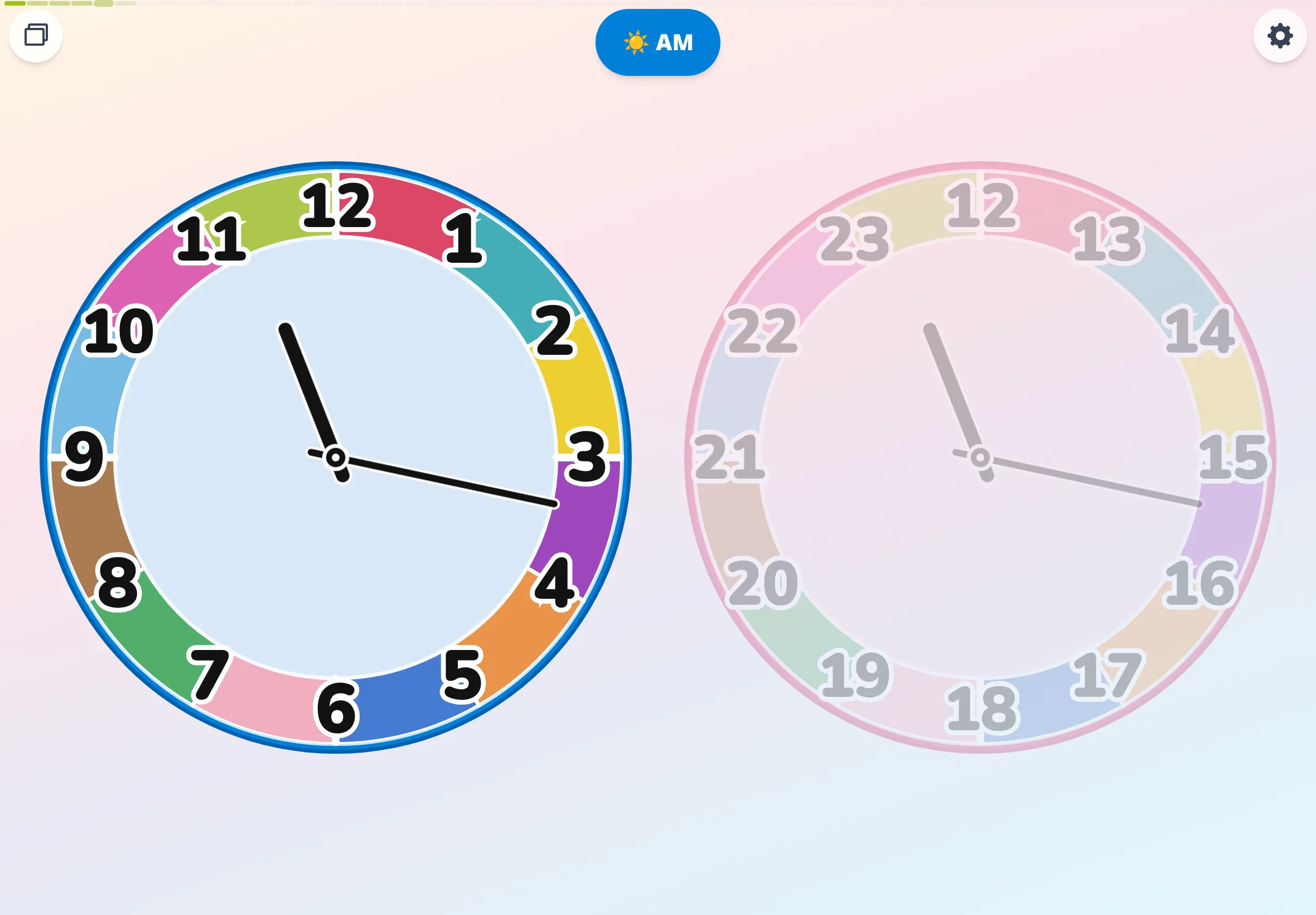
Futatoki the Learning Clock App at 7 PM in the sky-colors palette — the PM face glows in evening purple while the AM face sits dim, a 24-hour kids' clock app.
7 PM in the sky-colors palette is a deep evening purple. The same "7 o'clock" as morning — but the light outside, and everything else, is a different thing.

Long-press the AM or PM badge, and morning and afternoon trade places with a flip.

7 in the morning, 7 at night. Same number 7, but the light outside, the color of the sky, what's happening at home — all of it, completely different. The time "7" was never a single thing.

This fact — "the same number comes around twice" — is so obvious to adults that we forget to explain it. To a child, it's a real discovery. Watching the whole scene swap under a long press carries it better than words can.

Parent and child

"Right now it's 7 at night. What are we usually up to?"

"After dinner!"

"And the other 7 — which one's that?"

"…morning?"

"Right — 7 in the morning. Teeth-brushing time."

Tip: Anchoring to daily events is the quickest path. "7 AM is teeth-brushing / 7 PM is after dinner" — kids learn the AM/PM split through what happens, not what's written.

06 The 24-hour secret

Around 5 or 6, when the analog clocks on walls in town start catching their eye.

stack — an ordinary clock. split — what's inside.

Settings free spin × stack / split

Tapping "stack / split" at the top left, over and over. The two faces fold into one, then pop open again to reveal what's inside.

Enter free spin mode and a "stack / split" button appears.

Press "stack," and AM and PM fold onto a single face — the same shape as the ordinary analog clocks hanging on walls in every town.

Press "split," and morning and afternoon split apart again, as two separate faces.

A few taps back and forth, and what an ordinary clock has been quietly doing all along finally comes into view.

「A regular clock stacks 24 hours onto 12.」

That "stacking" just wasn't visible to a child before. Once they can see it, the clocks on walls out in the world stop being a mystery.

Parent and child

"What happens when I press stack?"

"It stuck together!"

"Right — this is the shape of the clock at home. Press split, and look — it opens right back up."

Tip: "An analog clock is a 24-hour clock folded in half." You can show this not as an argument but as a gesture. That's something only Futatoki the Learning Clock App can really do.

07 Without the minute numbers

Around ages 6 to 8, when they start wanting to read the clock without the minute numbers.

No minute numbers — still readable.

Settings slices × simple

Futatoki the Learning Clock App in slices × simple mode — the minute numbers are removed and only the hour boundaries remain, a free browser-based clock app for kids.
Minute numbers off. Only the hour boundaries remain — the same shape as an ordinary analog clock on a wall.

Once your child has gotten used to minute numbers in "detailed," turn "simple" back on. The minute numbers vanish from the rim, and only the hour dividers stay.

The ordinary analog clocks on walls don't usually show 1 to 60. The reason adults can still read them is that we read minutes from where the hands are pointing. This step is about getting there.

「Without minute numbers, the long hand's position still tells you roughly the minute.」

The slice lines act as 5-minute markers, so at first picking up just 15, 30, and 45 is plenty. The moment a child can read time from the position of the hands, with no numbers required — that's a child who can really tell time.

Parent and child

"Long hand — about where?"

"Between 3 and 4!"

"Right. 3 is 15 minutes, 4 is 20. So in between is…"

"17 minutes?"

"Roughly. Grown-ups go by roughly too."

Tip: Once you're here, the clocks on walls outside read the same way. Point at clocks out in the world, and the conversation just keeps going.

08 Finishing with a quiz

Ages 4 to 8, once they can tell time and it's becoming fun in itself.

"random." Ask, answer.

Settings free spin × random

Futatoki the Learning Clock App in sky-colors palette, stacked view, right after the random button was tapped — hands moving to a new time, a kids' clock-reading practice app, free in the browser.
Sky-colors palette, stacked view, one tap of "random." Just the hands slide off to a new time.

The "random" button picks a time between 6 AM and 9 PM — the kid's awake hours — in 15-minute steps. Only the hands move. The digits of the time stay hidden.

Parent asks "what time is it?" Child answers. That's the whole game.

Right or wrong, it doesn't really matter. "Got it by color," "got it roughly," "got it on the dot" — whichever level your child answers at, that's exactly where they are right now.

Parent and child

"All right — question one. What time is it?"

"Just past red, long hand on 15… 1:15!"

"Correct! …Okay, question two. This one's tricky."

Swap roles — it's even better

Letting the parent answer is great too. Say with a straight face, "Hmm… 4:15?" and your child will gleefully correct you: "No! 3:15!" For a good while after that, the clock is on their side.

Tip: When they miss, always say "so close!" out loud. Before the next question, quietly fold the answer back in as a color hint.

【Another way to play】

Drop activities
onto the clock.

The 8 steps are the path up to telling time. But Futatoki the Learning Clock App has one more way to play — the one that ties everyday life to the dial. It comes in two stages, by learning level.

For small kids — drop "now" onto the dial.

Settings free spin → activity menu → drop on "now"

Just had breakfast? Enter free spin mode, don't turn anything, drop a stamp on the current time. Out of the bath? Stamp on the current time. Press it after the thing happens — that's all. Even a child who can't read the hands yet can stack "already done" right onto the dial. By the end of the day, today's little footprints sit lined up across the clock.

As they grow — drop "plans" into the future.

Settings free spin → spin the dial → activity menu → drop on "here"

Drop bedtime onto the dial ahead of time, and as the hand approaches, the icon starts to bounce — softly, on its own. Suddenly the kid is the one coming to check the clock: "how many minutes left?"

This is where Futatoki the Learning Clock App's "clockwise only" design starts to pay off. If a child wants to drop "bedtime" three hours from now, they have to spin the dial three hours forward, themselves, before the stamp can go down. While they spin, the way the hands move and the way time advances both quietly soak in. The act of spinning the clock to operate it is itself practice in reading the clock — that's how it's built.

Tip: Both "footprint stamps" and "plan stamps" can run alongside the 8 steps. From STEP 01 onward, the "footprint stamps" alone can already start.

Three things
that hold across all of it.

1. Don't push.

No child learns to tell time in a day or two. But across five years, kids find their way there. A rushing grown-up is usually the longer route. "Today just isn't the day" — it's fine to close the app early.

2. Use it as a daily cue.

"Out the door at 7 in the morning." "Teeth brushed by 8:30 at night." As the rhythm of daily life gets tied to the clock, a sense of time quietly grows inside your child.

3. Turn an old tablet into a clock.

Add it to a home screen and it launches full-screen. If you have a tablet that's no longer in daily use, disable its screen-off, keep it plugged in, and prop it up — wall clock done. "Having a clock in the house" works better than "practicing how to read a clock."If you have an analog clock at hand, you can also swap its dial for the Futatoki face.

Sit beside your child
and open it together.

For the very first step, "the blue part" from Step 01 is all it takes.

Open Futatoki app →

← Back to the top page